Businesses in 2026 are operating in a very different environment from a few years ago. Hybrid work, remote employees, BYOD policies, cybersecurity concerns, rising hardware costs, and the need for faster IT deployment are changing how companies manage workplace technology.
One solution gaining attention is the virtual desktop.
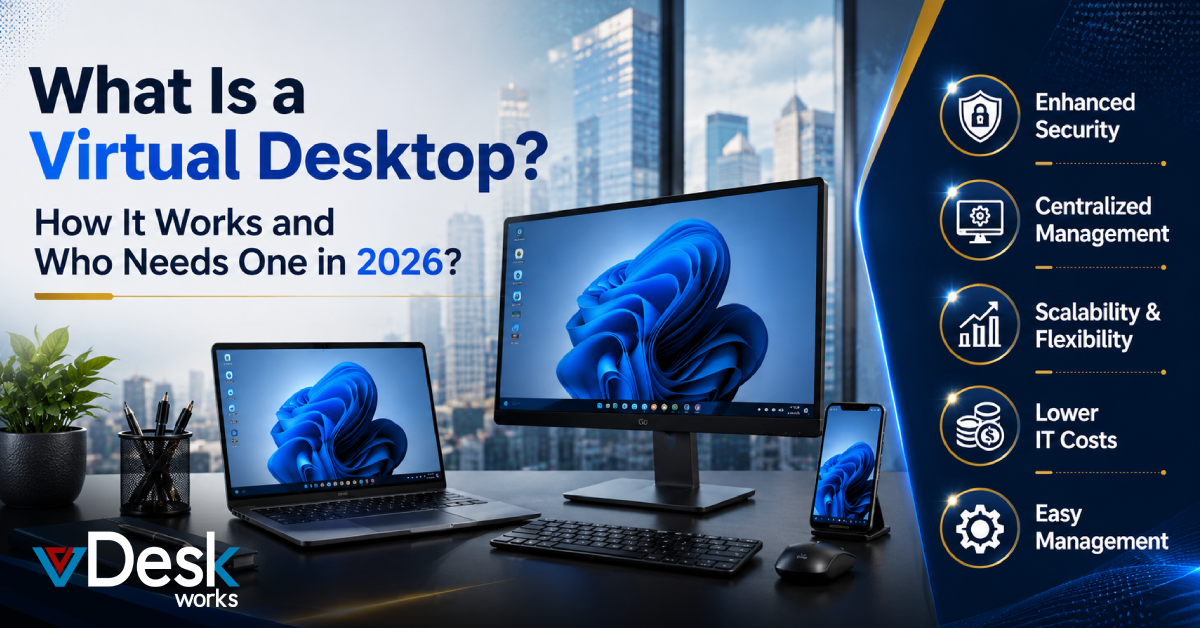
A virtual desktop separates an employee's digital workspace from the physical computer they use. Instead of keeping the operating system, applications, files, and computing resources entirely on a local PC, the desktop environment is hosted on centralized servers or cloud infrastructure and accessed remotely.
This model allows employees to access a familiar work environment from supported computers, tablets, smartphones, thin clients, or web browsers. For businesses, it can provide a more centralized approach to desktop management while supporting remote work, security, scalability, and operational efficiency.
What Is a Virtual Desktop?
A virtual desktop is a desktop environment hosted on a remote server or cloud instead of a user's physical computer. It includes the operating system, applications, files, and settings needed for work.
Employees can access the same desktop from laptops, PCs, tablets, or other supported devices. This helps businesses reduce reliance on high-end hardware while providing a consistent work environment from different locations.
How Does a Virtual Desktop Work?
A virtual desktop relies on several technology layers working together. A simplified process looks like this:
User Device → Authentication → Connection Broker → Virtual Infrastructure → Virtual Desktop Session
1. User Device or Endpoint
The process begins when an employee connects through a desktop application, browser, thin client, or supported mobile device.
The physical device primarily serves as the access point for the remote workspace.
2. Authentication and Connection Broker
The connection broker manages user authentication and determines which virtual desktop should be assigned to the employee.
Security controls such as multi-factor authentication can be added to verify that only authorized users gain access.
3. Hypervisor and Virtual Machines
The virtualization layer runs on physical servers or cloud infrastructure. A hypervisor can divide physical computing resources into multiple virtual machines.
Each virtual machine can operate as an independent desktop environment with its own operating system, applications, memory, storage, and processing resources.
4. Remote Display
The remote infrastructure processes the user's applications and sends the visual output to the endpoint. Keyboard and mouse actions are transmitted back to the virtual environment.
As a result, sensitive business information can remain primarily within centralized infrastructure instead of being stored directly on the user's physical device. However, organizations still need appropriate security policies and endpoint controls.
What Are the Main Virtual Desktop Delivery Models?
Businesses can implement virtual desktops in several ways depending on their IT strategy.
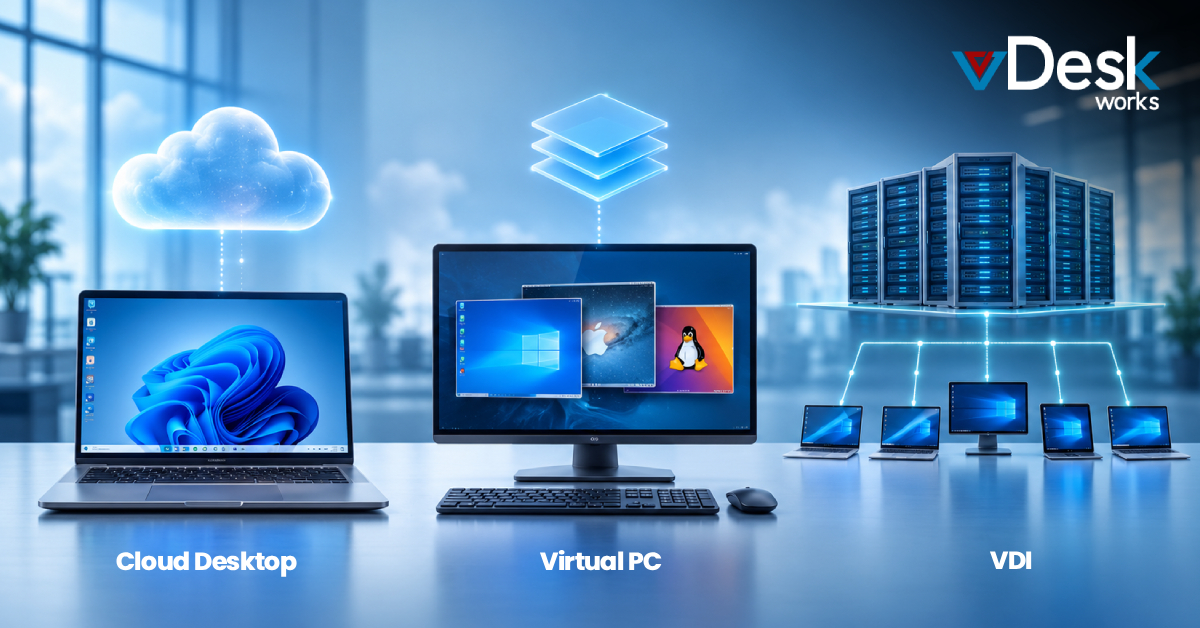
Virtual Desktop Infrastructure (VDI)
With VDI, the organization manages the underlying servers, virtualization infrastructure, desktop images, networking, and other components.
This approach offers greater control but can require significant technical expertise, infrastructure investment, and ongoing maintenance.
Desktop as a Service (DaaS)
DaaS moves the virtual desktop infrastructure into a cloud or provider-managed environment.
Instead of building the entire backend internally, businesses use a service provider to deliver and manage virtual desktops. This can reduce infrastructure responsibilities for internal IT teams and provide a more flexible subscription-based model.
vDeskWorks provides cloud-based DaaS and virtual desktop solutions designed for businesses that need centrally managed desktop environments.
Remote Desktop Services (RDS)
RDS allows multiple users to access applications or desktop sessions hosted on centralized servers. Users may share the underlying operating system and server resources rather than receiving completely independent virtual machines.
This can work well for organizations with standardized applications and predictable user workloads.
Who Needs a Virtual Desktop in 2026?
The use of virtual desktops has expanded beyond traditional IT environments. Several business groups can benefit from this technology.
Are Hybrid and Remote Businesses a Good Fit?
Yes. Virtual desktops give distributed teams secure access to business applications from supported devices. They can also simplify BYOD by providing a centrally managed work environment.
Can Regulated Industries Use Virtual Desktops?
Healthcare, finance, government, and legal organizations can use virtual desktops to reduce data stored on employee devices and centrally manage access. However, VDI alone does not ensure HIPAA, PCI-DSS, or other compliance. Organizations still need proper security controls, policies, encryption, and auditing.
Are Call Centers and Shift Workers Good Candidates?
Yes. Non-persistent virtual desktops provide standardized workspaces that can reset between sessions. This helps businesses manage temporary, seasonal, and shift-based employees more efficiently.
What About Developers and Power Users?
Developers, designers, engineers, and architects may need higher CPU, RAM, storage, or GPU resources. GPU-enabled virtual desktops can support demanding applications such as Photoshop, AutoCAD, and SolidWorks without requiring expensive physical workstations for every user.
Virtual Desktop vs. Physical PC: What Does It Cost?
Cost is one of the most important considerations when evaluating a virtual desktop strategy.
For a 50-person business, a cloud DaaS or VDI environment could potentially cost around $2,200 to $4,400+ per month, depending on the provider, licensing, computing resources, storage, performance requirements, and management model.
A physical PC strategy can require a substantial upfront investment. For example, purchasing 50 business-grade computers at an average of $1,000 each would represent approximately $50,000 in initial hardware spending.
However, physical hardware also creates ongoing costs, including:
- Hardware replacement
- IT support
- Device repairs
- Software deployment
- Security tools
- Backup systems
- Energy consumption
- Employee onboarding
- Downtime and lost productivity
A virtual desktop model can shift more of these expenses toward cloud infrastructure and service costs.
However, businesses should not assume that virtual desktops are automatically cheaper. The right comparison should include the total cost of ownership, including licensing, networking, storage, support, backups, and resource consumption.
How Much Does a Virtual Desktop Cost Per User?
Virtual desktop pricing varies based on the provider and architecture.
Basic shared environments can be relatively inexpensive, while dedicated desktops, GPU-enabled systems, high-performance environments, and managed services can cost considerably more.
Businesses may encounter:
- Per-user monthly pricing
- Consumption-based cloud pricing
- Dedicated virtual machine pricing
- Shared or multi-session pricing
- Managed DaaS pricing
Additional costs may include Microsoft 365 or other application licenses, storage, user profiles, networking, data transfer, backups, migration, and technical support.
For this reason, companies should evaluate the complete pricing structure instead of comparing only the advertised monthly desktop fee.
How Should Businesses Choose a Virtual Desktop Provider?
Choosing the right provider requires a review of both technical and business requirements.
Businesses should consider:
- Business requirements: Determine the applications and desktop types employees need.
- Pricing: Understand whether charges are based on users, devices, resources, or consumption.
- Security: Review encryption, MFA, access controls, monitoring, and data protection.
- Compliance: Confirm whether the provider supports the regulatory requirements relevant to the organization.
- Performance: Evaluate latency, bandwidth, CPU, memory, storage, and GPU requirements.
- Scalability: Check how quickly desktops can be added or removed.
- Application compatibility: Test critical business software before deployment.
- Management: Understand how much responsibility remains with the internal IT team.
- Availability: Review uptime commitments, redundancy, and support.
- Migration: Ask how existing applications, profiles, and data will be transferred.
- Deployment flexibility: Consider cloud, private, or hybrid infrastructure requirements.
- Proof of concept: Test the platform with real users before a full rollout.
How Does vDeskWorks Support Modern Virtual Desktop Needs?
vDeskWorks provides cloud-based virtual desktop and DaaS solutions designed to help businesses modernize desktop infrastructure.
Its platform supports cross-device access, centralized management, session monitoring, load balancing, automated backups, multi-factor authentication, encrypted environments, and GPU-backed virtual desktop capabilities.
This approach allows organizations to provide different desktop configurations according to employee requirements. Standard office users may need basic computing resources, while designers, engineers, and other specialists can receive higher-performance environments.
For businesses managing remote employees, hybrid teams, call centers, BYOD programs, or specialized workloads, vDeskWorks provides a centralized way to deliver and manage digital workspaces.
vDeskWorks helps businesses explore this model through cloud-based virtual desktops and DaaS, providing organizations with a flexible approach to delivering secure and centrally managed digital work environments.
 Emma Carson