Remote work has become part of everyday business. Employees connect to office desktops from home, while IT teams support users across different locations. But when a remote desktop refuses to connect, work stops immediately.
The good news is that many remote desktop problems can be solved without waiting for IT support. Simple issues like network interruptions, firewall settings, outdated credentials, or DNS problems are often responsible for failed connections.
In this guide, we'll look at 7 common fixes you should try before calling your IT department. We'll also explain how vDeskWorks Remote Assistance helps businesses resolve remote desktop issues quickly and securely.
Why Remote Desktop Problems Happen
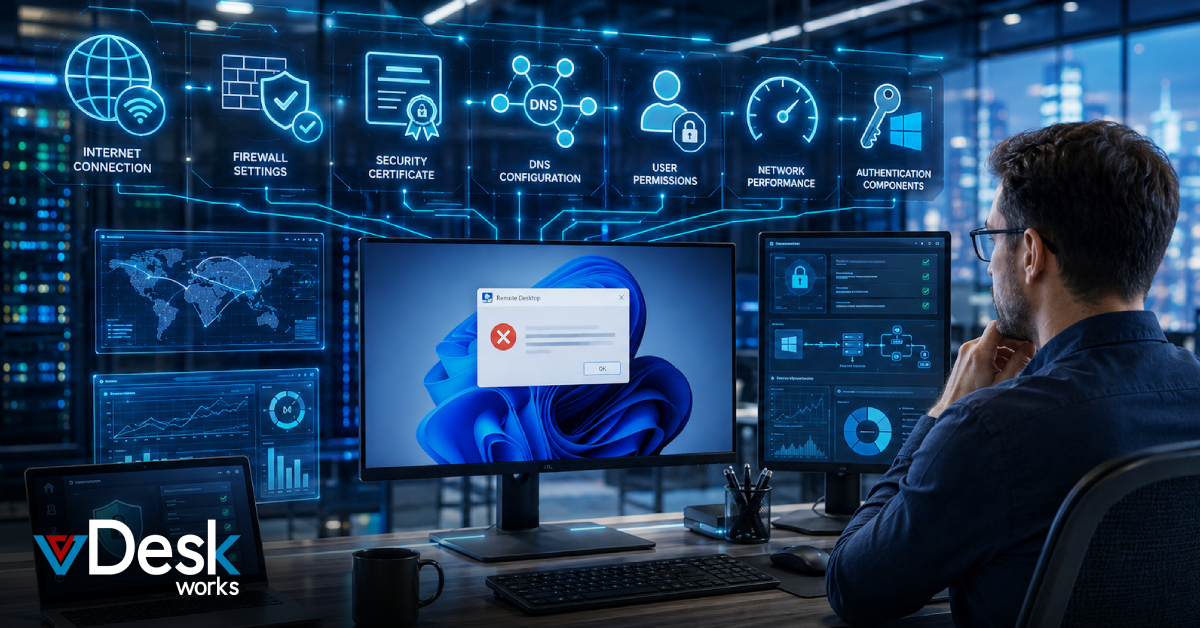
A remote desktop connection depends on several systems working together. If even one component fails, users may receive connection errors, black screens, authentication failures, or repeated login requests.
Common causes include:
- Network connectivity issues
- Firewall restrictions
- Incorrect DNS settings
- Expired security certificates
- User permission problems
- Poor internet bandwidth
- Authentication errors
Knowing where to check first can save valuable time.
1. Check Your Internet Connection
A weak or unstable internet connection is one of the most common reasons remote desktops stop working.
Before trying anything else:
- Restart your internet connection.
- Switch between Wi-Fi and wired internet if possible.
- Disconnect and reconnect your VPN.
- Test whether other websites are working normally.
If the network is unstable, the remote desktop may fail to establish a session.
2. Verify Firewall Settings
Firewalls help protect business systems, but they can also block remote desktop traffic.
If Remote Desktop suddenly stops working:
- Check whether Remote Desktop is allowed through Windows Firewall.
- Confirm your company firewall allows remote desktop traffic.
- Verify VPN access if your company requires one.
Incorrect firewall settings often prevent successful connections.
3. Make Sure Security Certificates Are Valid
Secure Remote Desktop sessions rely on digital certificates.
Problems may occur if:
- Certificates have expired.
- The certificate is not trusted.
- The server name doesn't match the certificate.
Updating or replacing certificates usually resolves these authentication issues.
4. Check DNS Configuration
Sometimes the desktop server is available, but your computer cannot locate it.
Simple fixes include:
- Refresh your DNS cache.
- Verify you're using the correct DNS server.
- Try connecting using the server's IP address instead of its hostname.
DNS problems are common after server migrations or network changes.
5. Confirm User Permissions
Not every employee automatically has permission to access Remote Desktop.
IT administrators should verify:
- The user belongs to the correct Remote Desktop group.
- Required access permissions are assigned.
- Remote Desktop licensing is active.
Incorrect permissions often generate login or authorization errors.
6. Improve Network Performance
Sometimes the connection starts successfully but later freezes or disconnects.
This usually happens because of limited bandwidth.
To improve performance:
- Close unnecessary applications.
- Reduce background downloads.
- Lower display resolution.
- Disable unnecessary visual effects.
A lighter remote desktop session performs much better on slower internet connections.
7. Update Authentication Components
Outdated Windows updates or authentication services can interrupt Remote Desktop connections.
If authentication keeps failing:
- Install the latest Windows updates.
- Update both the client and server.
- Restart both systems after updates.
Keeping systems updated helps prevent many compatibility issues.
How vDeskWorks Makes Remote Support Easier
Even after basic troubleshooting, some technical issues require professional support. That's where vDeskWorks Remote Assistance becomes valuable.
Instead of relying on lengthy phone calls or email exchanges, IT administrators can securely connect to a user's desktop and resolve issues in real time.
Key features include:
- Secure remote desktop assistance.
- Session shadowing with user permission.
- Real-time troubleshooting.
- Shared desktop view between users and administrators.
- Faster issue resolution.
- Centralized support for global offices.
This reduces downtime while improving employee productivity.
Benefits of vDeskWorks Remote Assistance
Businesses choose vDeskWorks because it simplifies IT support across remote and hybrid workplaces.
Some major advantages include:
- Quick remote troubleshooting.
- Secure administrator access.
- Reduced help desk response time.
- Support available across multiple locations.
- Lower IT operational costs.
- Improved employee productivity.
- Better user experience.
Instead of maintaining separate IT teams for every office, businesses can support employees from one centralized platform.
Why Businesses Are Moving to Virtual Remote Desktops
Modern organizations are increasingly investing in virtual desktop solutions because they offer more flexibility than traditional office computers.
With platforms like vDeskWorks, employees can:
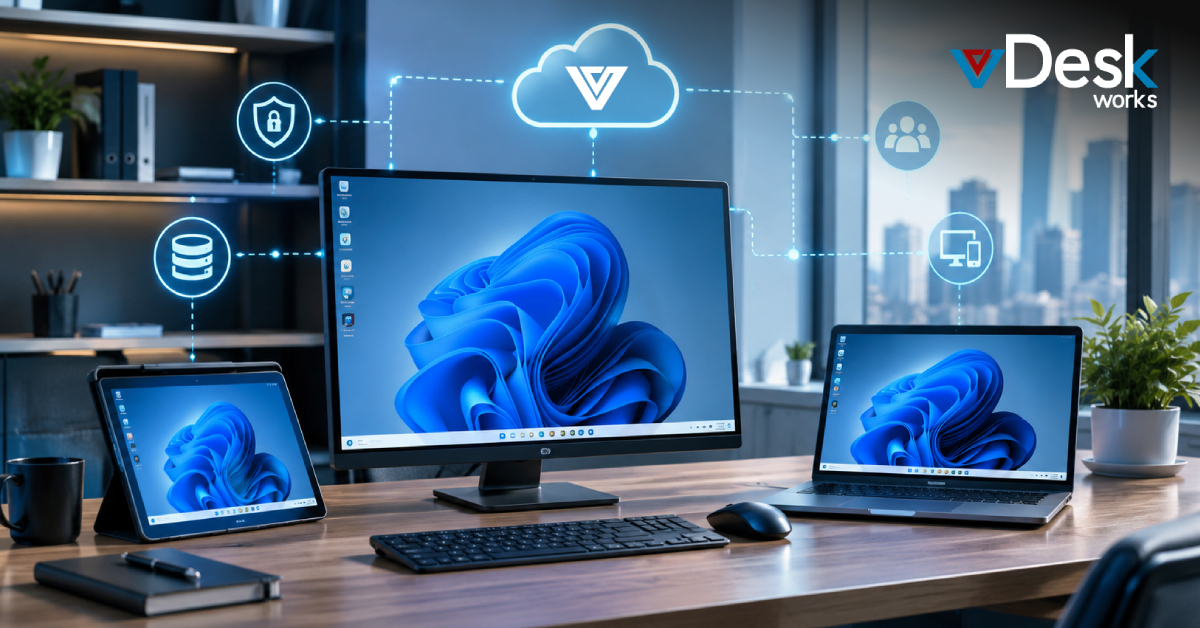
- Access desktops from Windows, macOS, Android, or iOS devices.
- Work securely from anywhere.
- Easily switch between devices.
- Protect company data through centralized storage.
- Scale users as business needs change.
- Reduce hardware expenses with BYOD support.
These benefits make remote work more secure, efficient, and cost-effective.
Final Thoughts
Remote desktop issues don't always require an immediate call to IT. Many problems can be solved by checking your internet connection, firewall settings, DNS configuration, permissions, or authentication services.
However, when advanced troubleshooting is required, vDeskWorks Remote Assistance provides IT teams with the tools they need to securely access user desktops, resolve issues faster, and minimize downtime.
As businesses continue to embrace remote and hybrid work, having a reliable remote desktop platform with built-in support capabilities is no longer optional, it's essential. With vDeskWorks, organizations get secure remote access, centralized management, and expert support that keeps employees productive wherever they work.
 Emma Carson