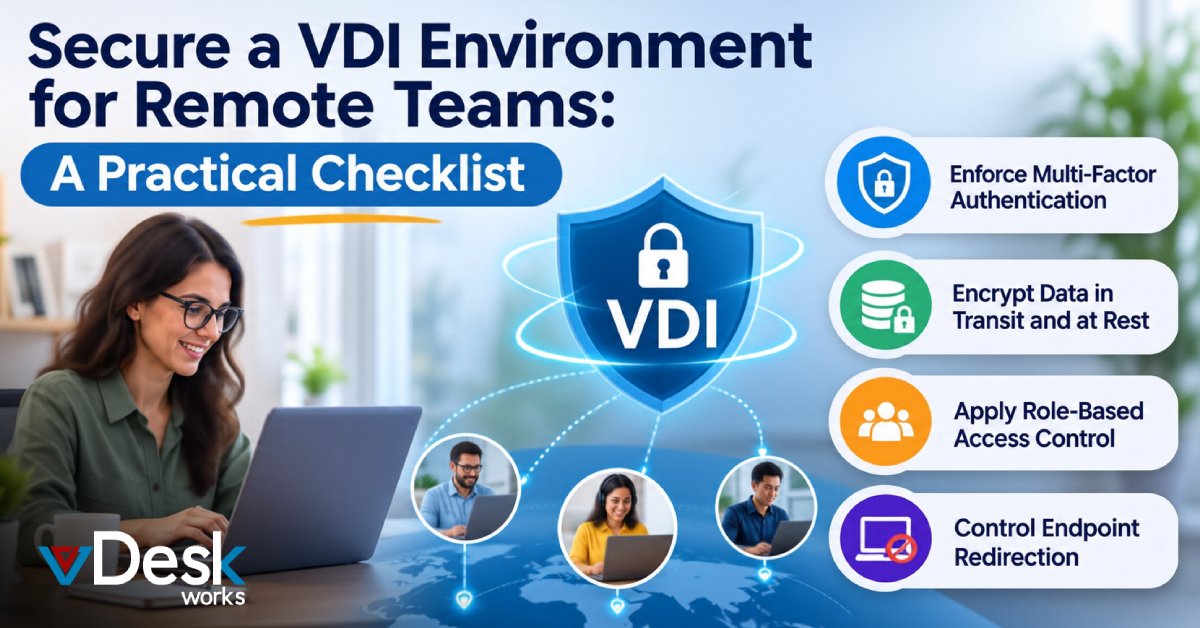
Remote and hybrid work have changed the way businesses think about IT security. Employees can now access company applications and information from homes, coworking spaces, client locations, and other remote environments.
While this flexibility helps businesses build distributed teams, it also creates new security considerations. Employees may use different networks and endpoint devices, and companies may have less direct control over the computers used to access business resources.
This is one reason organizations are turning to Virtual Desktop Infrastructure (VDI).
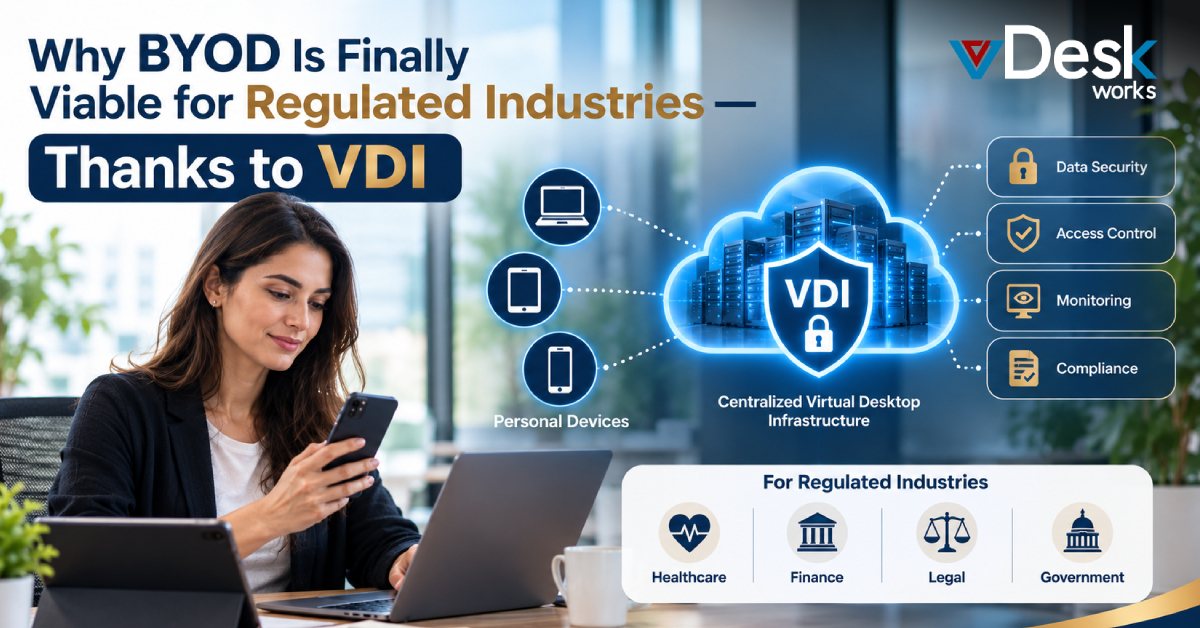
Instead of placing all applications and business information directly on employee computers, VDI allows businesses to host desktop environments centrally and provide users with controlled remote access.
However, simply deploying VDI does not automatically make an environment secure. Organizations still need authentication, access controls, encryption, endpoint restrictions, monitoring, backup, and recovery policies.
This VDI Security Checklist explains the practical measures businesses should consider when securing virtual desktops for remote teams.
VDI Security Checklist for Remote Teams
1. Enforce Multi-Factor Authentication
The first security layer should be strong user authentication.
Passwords can be stolen, reused, guessed, or exposed through phishing attacks. Multi-factor authentication (MFA) adds another verification requirement before a user can enter the virtual environment.
Businesses can use methods such as one-time passwords, authentication applications, or other approved verification mechanisms.
For remote teams, MFA is particularly important because employees may be connecting from networks and devices outside the organization's physical offices.
Checklist:
- Require MFA for remote VDI access.
- Use strong password policies.
- Disable inactive or unnecessary accounts.
- Review authentication events regularly.
- Remove access immediately when employees leave.
2. Encrypt Data in Transit and at Rest
Remote employees connect to virtual desktops across external networks, so protecting the communication channel is essential.
Encryption helps prevent unauthorized parties from viewing information as it travels between the endpoint and the hosted environment.
Businesses should also consider encryption for data stored within the virtual infrastructure.
vDeskWorks supports encrypted connections and security mechanisms designed to protect remote sessions. Its environment uses TLS-based secure communications, while additional protocols can help protect application and desktop sessions.
The exact encryption architecture should be reviewed against an organization's applications, compliance requirements, and security policies.
3. Apply Role-Based Access Control
Not every remote employee needs access to every application or file.
Role-Based Access Control (RBAC) allows administrators to assign permissions according to a person's responsibilities.
For example, a finance employee may need accounting applications, while a customer support employee may require access to CRM and ticketing software.
Keeping permissions limited to necessary resources follows the principle of least privilege.
Checklist:
- Create access groups based on job roles.
- Give users only the applications they require.
- Restrict sensitive files and systems.
- Review permissions regularly.
- Remove unnecessary privileges when roles change.
4. Control Endpoint Redirection
Remote desktop platforms can support different types of redirection between the user's device and the virtual environment.
While features such as clipboard access, local drives, printing, or USB redirection can be useful, they may also create additional routes for data movement.
Businesses should decide which redirection features are genuinely required.
For sensitive environments, administrators may choose to restrict:
- Clipboard transfer
- Local drive access
- USB redirection
- File downloads
- Printing
- Screen capture or recording
The objective is not to disable every feature. It is to reduce unnecessary data movement while preserving employee productivity.
5. Use Non-Persistent or Controlled Virtual Desktops
A persistent desktop maintains a user's environment over time. A non-persistent environment can instead be recreated or reset according to defined policies.
For organizations with temporary workers, contractors, call center agents, or high-volume remote workforces, controlled desktop lifecycles can reduce the amount of unnecessary information retained within individual sessions.
vDeskWorks can support centralized virtual desktop management and environments that can be configured around organizational requirements.
Automated inactivity policies can also help address dormant sessions.
6. Automate Inactivity Management
Leaving virtual desktops active for long periods can create unnecessary security exposure.
Businesses can configure policies that log users out, suspend sessions, or remove inactive environments after a defined period.
This can help reduce the risk associated with unattended sessions.
For example, if an employee leaves a session open overnight, an inactivity policy can prevent that workspace from remaining unnecessarily accessible.
The appropriate timeout should balance security with the employee's actual working requirements.
7. Conduct Regular Security Audits
VDI environments need continuous maintenance.
New vulnerabilities can emerge in operating systems, applications, remote access components, and supporting infrastructure.
Regular security reviews can help businesses identify configuration problems before they become larger issues.
IT teams should periodically review:
- Virtual machine configurations
- Operating system patches
- Application updates
- User permissions
- Authentication events
- Network policies
- Session activity
- Security logs
- Backup status
Security should be treated as an ongoing process rather than a one-time VDI deployment task.
8. Build Backup and Disaster Recovery Into VDI Security
Security and availability are closely connected.
A business may protect its virtual desktops from unauthorized access but still face major disruption if a system failure causes important data or desktop configurations to become unavailable.
vDeskWorks provides backup and disaster recovery capabilities designed to support business continuity.
Daily Snapshots
Snapshots can capture the state or configuration of a virtual machine at a defined point in time.
If an error or failure occurs, an earlier state may be available for restoration, depending on the organization's configuration and retention policy.
Scheduled Backups
Regular backups create additional copies of important information that can be recovered if data is corrupted, accidentally deleted, compromised, or lost.
Businesses can configure backup intervals according to their operational requirements.
Disaster Recovery
A broader VDI Disaster Recovery strategy can help organizations prepare for infrastructure failures and other disruptive incidents.
vDeskWorks also supports Azure-based disaster recovery approaches, including workload replication and failover capabilities through Azure Site Recovery.
When a primary environment becomes unavailable, workloads can be failed over to a secondary environment according to the organization's disaster recovery plan. After the primary environment is restored, systems can be failed back.
How vDeskWorks Supports a Secure VDI Environment
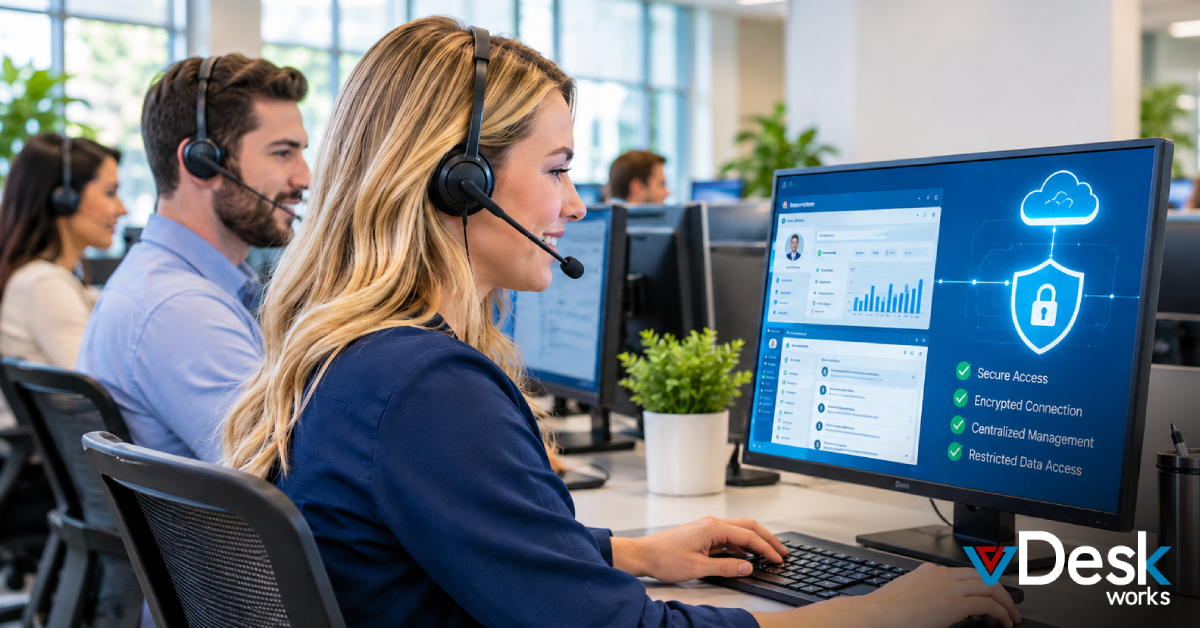
vDeskWorks combines virtual desktops with centralized security and management capabilities designed for organizations supporting remote and hybrid users.
Key security considerations include:
MFA: Additional identity verification for remote access.
- Encrypted connections: Protection for information moving between users and virtual environments.
- Centralized access management: Control over users, permissions, and desktop resources.
- Session security: Policies to manage and control remote sessions.
- Backup and snapshots: Support for recovery from accidental deletion, corruption, or system failures.
- Disaster recovery: Options for maintaining business continuity through cloud-based recovery infrastructure.
- Compliance support: Capabilities designed to help organizations address requirements associated with environments such as PCI and HIPAA, subject to proper configuration and organizational compliance processes.
- DDoS protection: Additional network-level protection for hosted environments.
Conclusion
A secure VDI environment requires more than simply moving desktops into the cloud. Businesses need to consider identity, access, encryption, endpoint controls, session management, monitoring, backup, and disaster recovery as connected parts of the security strategy.
For remote and hybrid teams, VDI for remote teams can help move the primary business workspace away from individual endpoints and into a centrally managed environment.
vDeskWorks provides virtual desktop capabilities that combine centralized workspace management with security features such as MFA, encrypted communications, access controls, backups, snapshots, disaster recovery, and network protection.
When these controls are properly configured and regularly reviewed, businesses can create a more controlled environment for remote employees while maintaining the flexibility that modern distributed work requires.
 Emma Carson